This tutorial will be similar to clipping vector layers, but for raster layers instead. Due to the large size of raster files it is often best to clip them to increase the efficiency of your program. You may recall back in tutorial 14 when reprojecting the raster layer that it look a long time to finish, not to mention the output file can be very large depending on the projection. In this tutorial we will perform clipping directly using the raster reprojection tool Warp.
Activity 1: Clipping Raster Layers
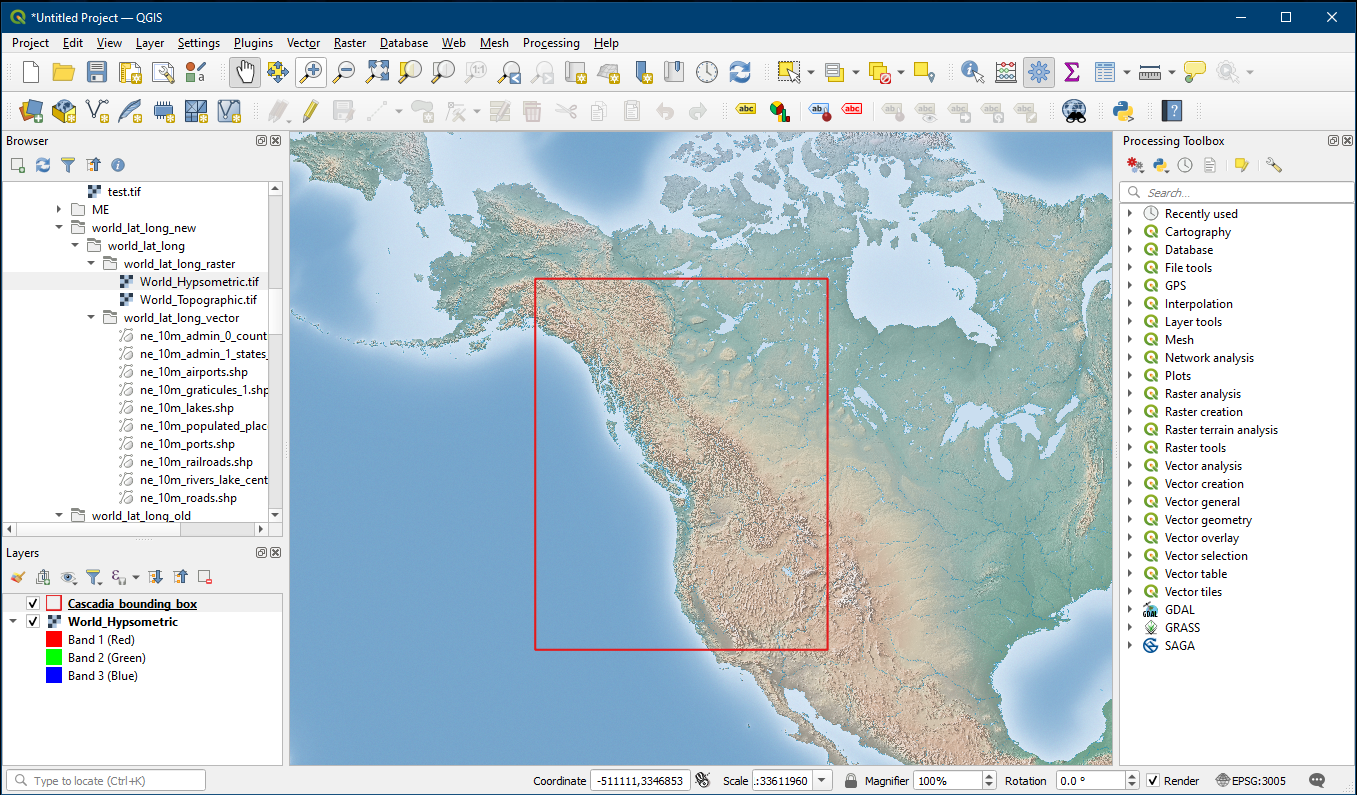
Open a blank project and add your Cascadia bounding box along with the original World_Hypsometric layer from the world_lat_long folder. Give your bounding box a red outline and transparent fill. Ensure that your project is set to EPSG:3005 in the bottom right.
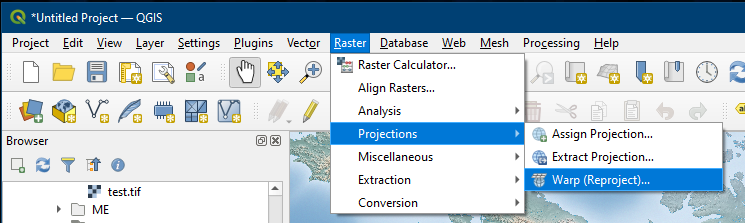
In the menu, select Raster > Projections > Warp (Reproject). Note that this is the same tool we used to reproject the raster layer in a previous tutorial..
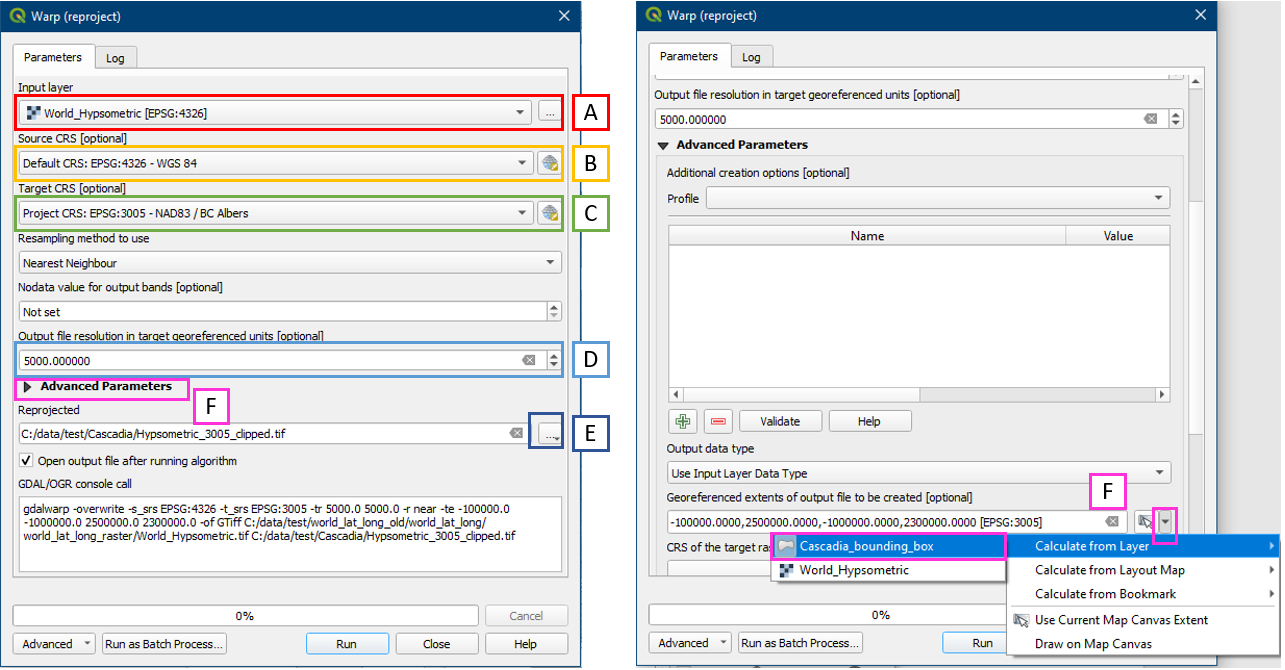
In the Warp tool, choose the following settings:
- For Input Layer choose World_Hypsometric
- Select the corresponding CRS of the input layer
- Choose the target or reprojected CRS, in our Cascadia example use EPSG:3005
- Choose our previous recommended output resolution of 5000 m, feel free to test out smaller numbers for more detail
- Choose a folder location and file name. Also make sure to save as a TIF file type.
- Open Advanced Parameters, under Georeferenced extents of output file to be created, click the dropdown arrow > Calculate from Layer -> Cascadia_bounding_box. Selecting the bounding box acts as the clipping tool.
- Click Run
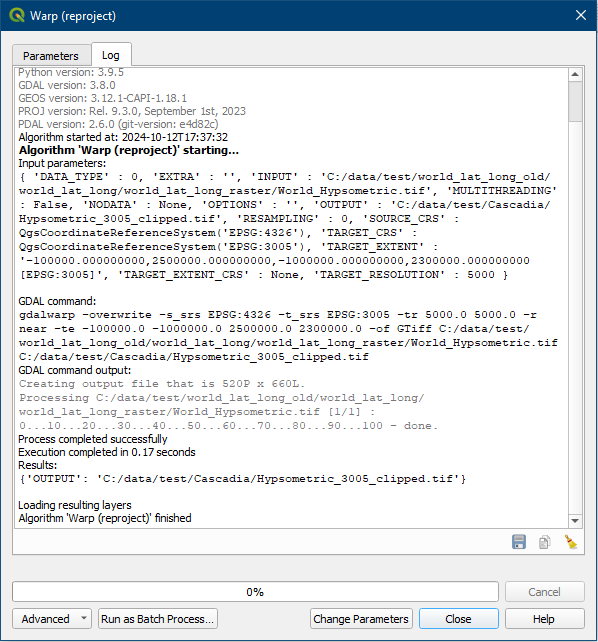
Once the log says algorithm is finished, you can close it. You may have noticed adding the bounding box extents in the Warp tool made it run much faster than when we tried in the previous reprojection tutorial, since the tool no longer need to compute for the entire world.
You can now turn off or remove the original World_Hypsometric layer. Check your new Hypsometric_3005_clipped layer. The Warp tool has performed both reprojection and clipping in one step. This is advantageous for raster layers because intermediary files can take up a lot of space, and this method skips creating such intermediary files.
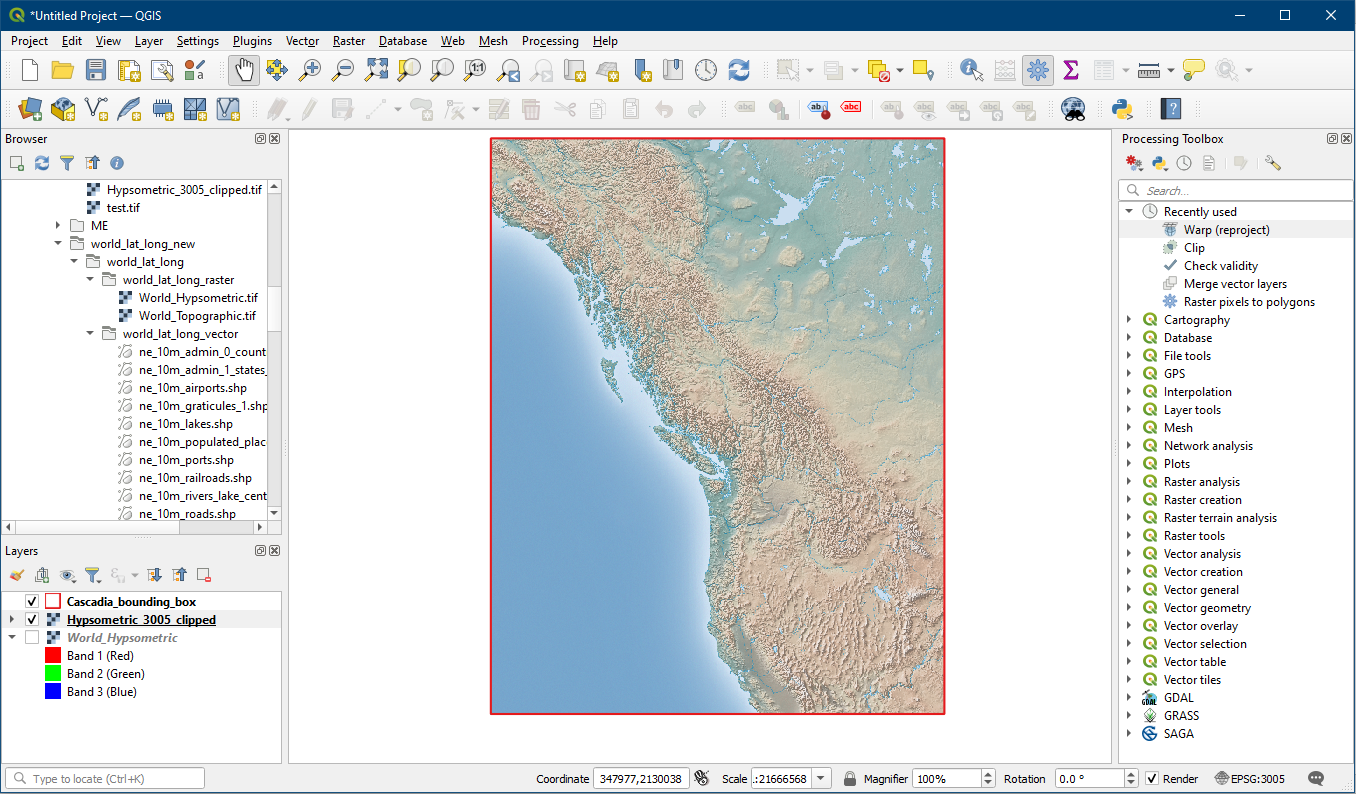
Good work! Save your project as Tutorial_16.