In this tutorial you will learn how to clip vector layers. Increasing the efficiency of the GIS program and rendering is often done by reducing the data size or spatial area being mapped.
Here is some background on clipping vector layers, also called Vector Overlay.
Activity 1: Clipping Vector Layers
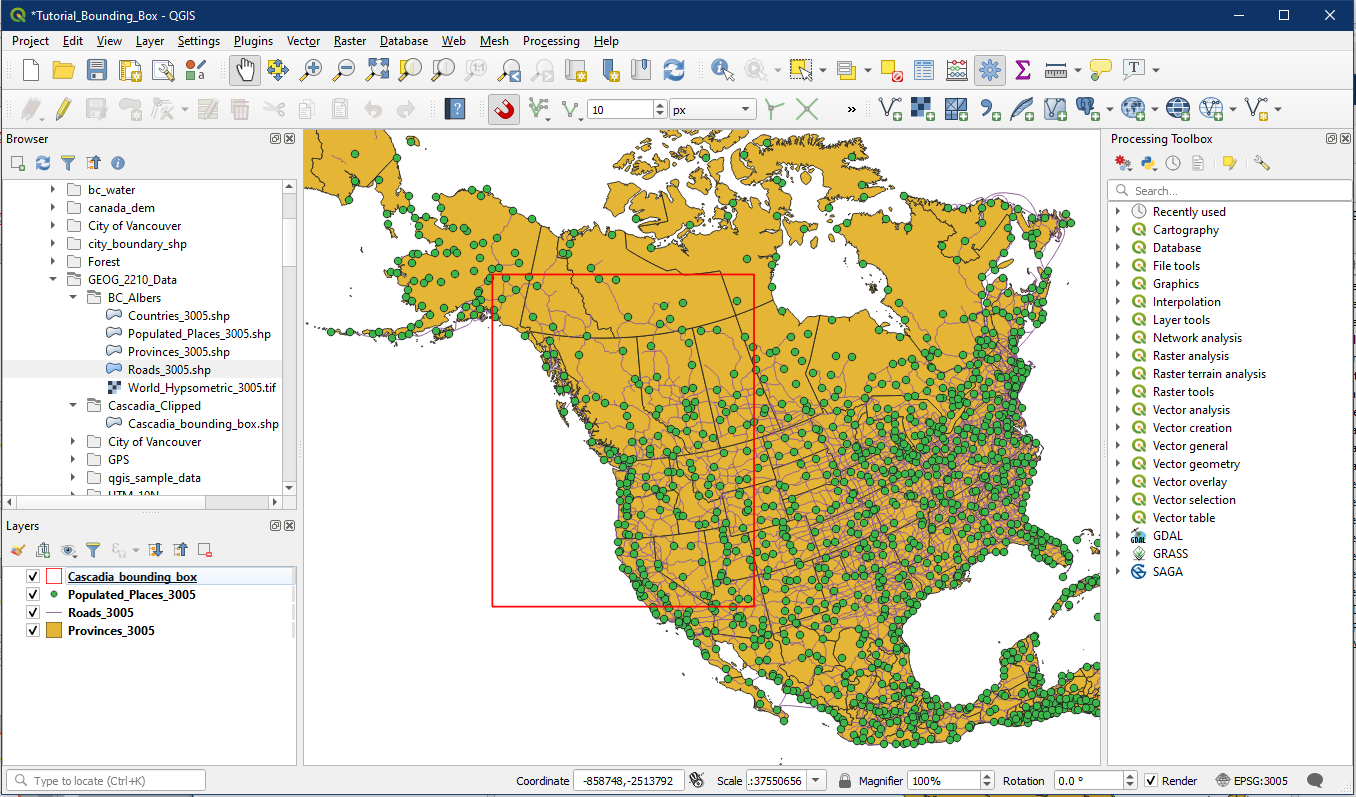
Open your Tutorial_14 project. You may already have the province and bounding box layers in the project. Also add the remaining BC Albers vector layers so that we have:
- Cascadia_bounding_box
- Populated_Places_3005
- Roads_3005
- Provinces_3005
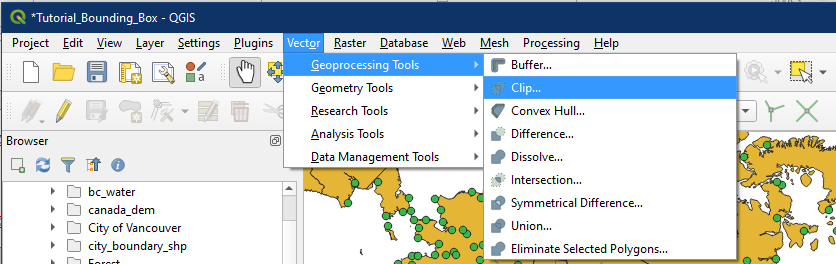
Now we will clip our vector layers using the Cascadia bounding box. In the top menu, select Vector > Geoprocessing Tools > Clip.
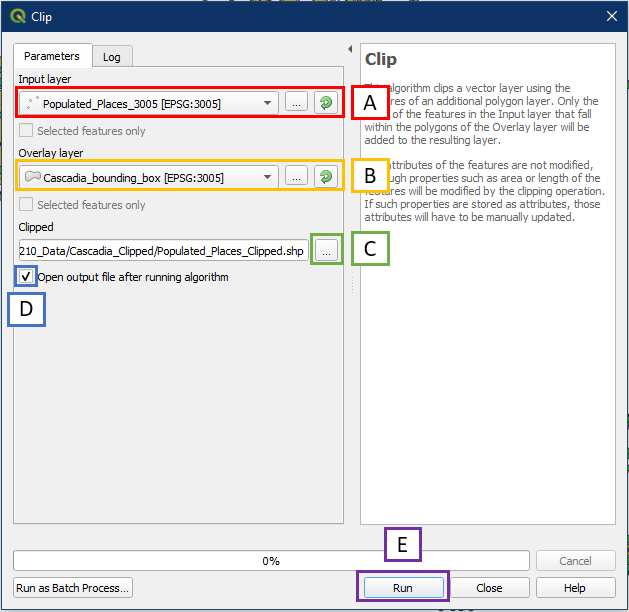
In the ensuing Clip window, set it as shown below:
- For Input Layer, choose one of our vector layers e.g. Populated_Places_3005
- For Overlay layer, choose the bounding box layer Cascadia_bounding_box. Notice how it shows the EPSG so we can be sure that the input and overlay layers have matching EPSG.
- For Clipped, click the “…” button to Save to File, choose a folder location and file name for your clipped layer. For example in the folder Cascadia_Clipped, save the layer as Populated_Places_Clipped, with shapefile format (.shp). Think of the tool as a cookie cutter. The raw dough is the Input layer and the cookie cutter is the Overlay layer.
- Check the box for “Open output file after running algorithm”
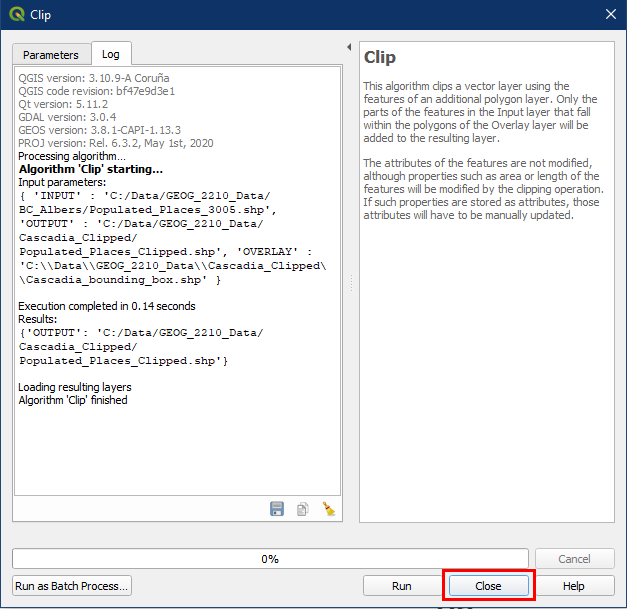
- Click Run.
Click Close once the log says Algorithm Clip finished.
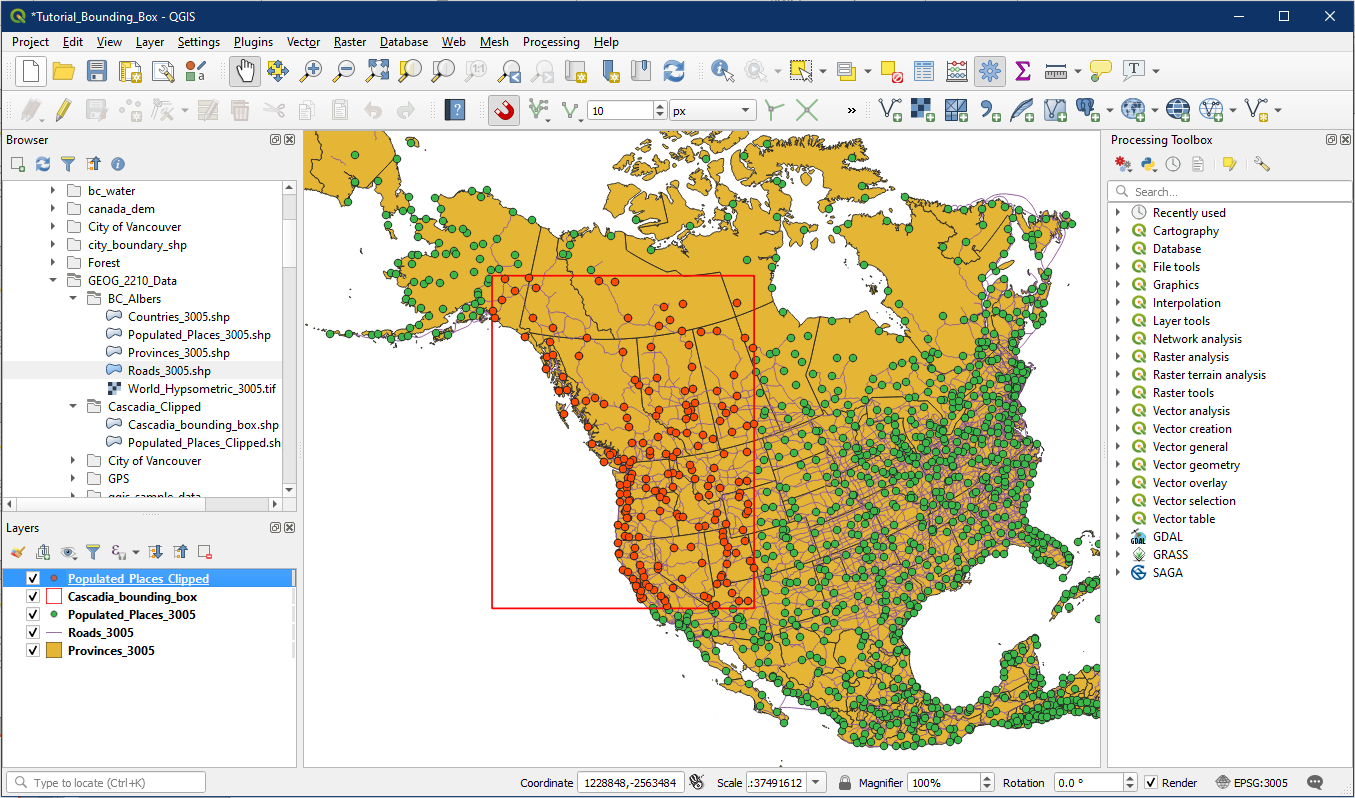
The new clipped layer should now appear within the Layers panel and on the map. Notice how the new layer only exists within the extent of the bounding box.
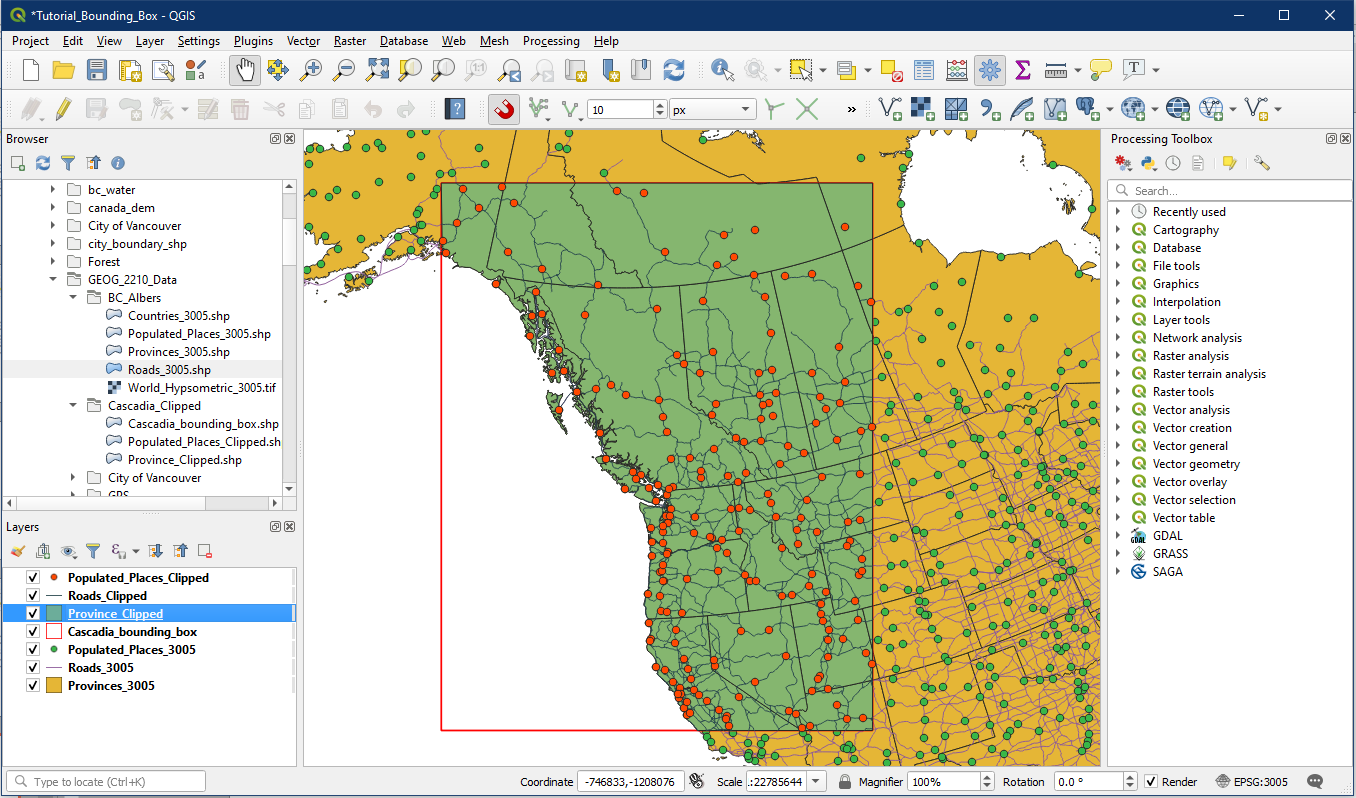
Now use the same Clip tool on the Roads layer and Provinces layer. You should end up with a new set of vector layers that only exist within the extent of the bounding box.
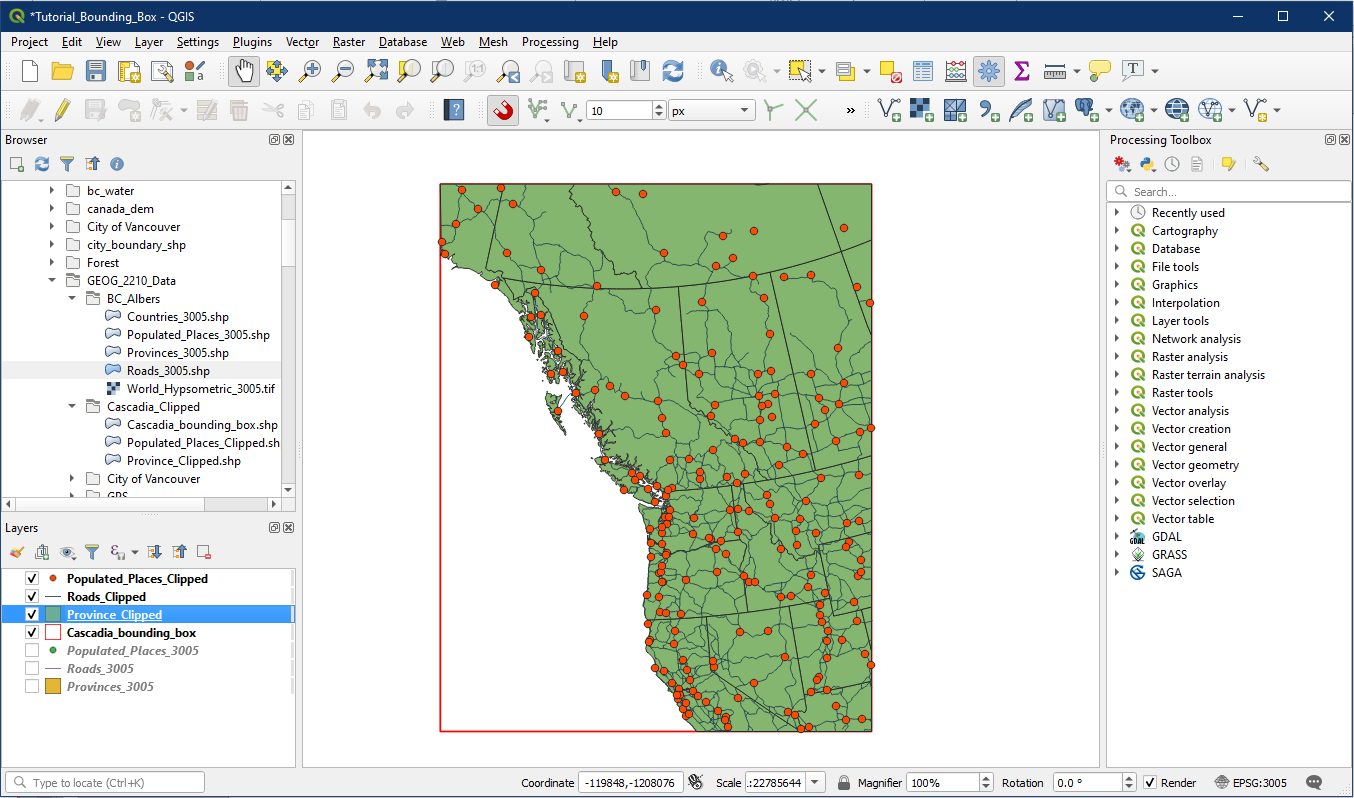
Turn off the original vector layers to see if this is indeed the case.
Good work! Save your project as Tutorial_15
Troubleshooting
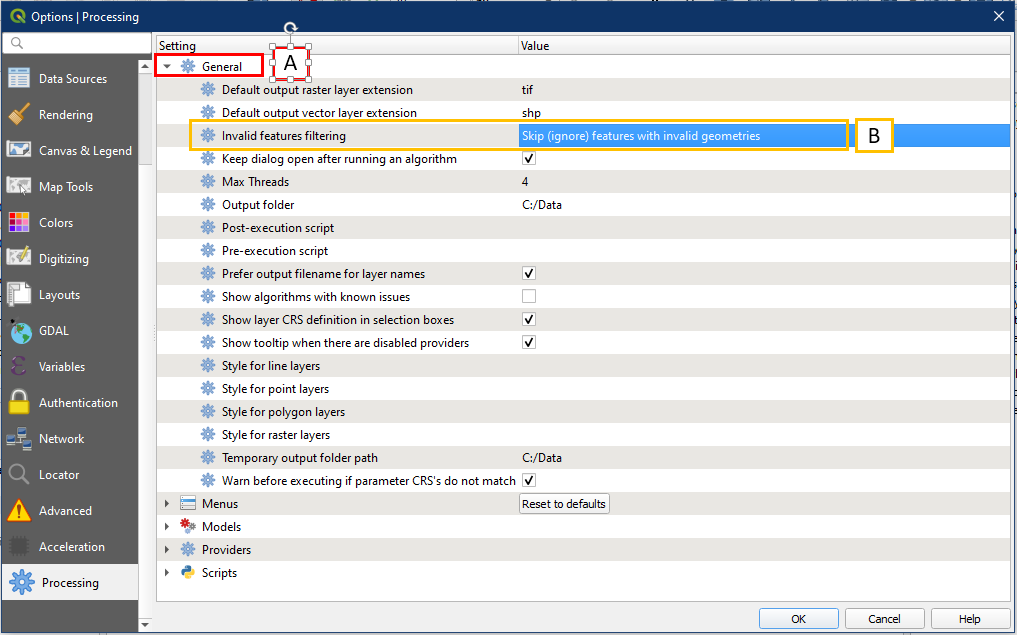
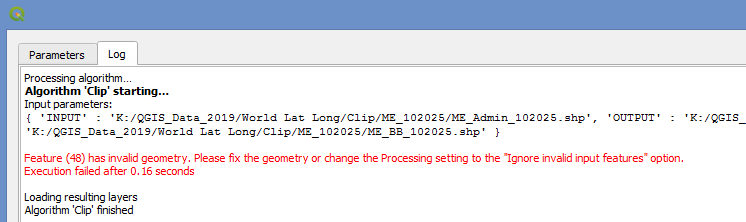
** If you are clipping your vector layers and receive an error message that mentions features with invalid geometry, it is because your settings will not allow for the polygons to be split or splice by the clipping action.
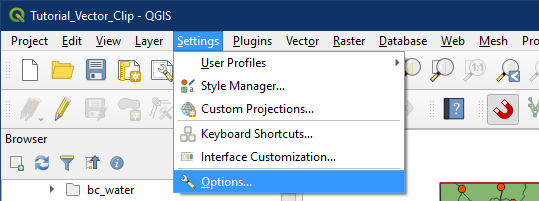
This can be remedied by going into Settings > Options.
In the Processing section, expand General (A). For Invalid features filtering, choose Skip (ignore) features with invalid geometries (B).