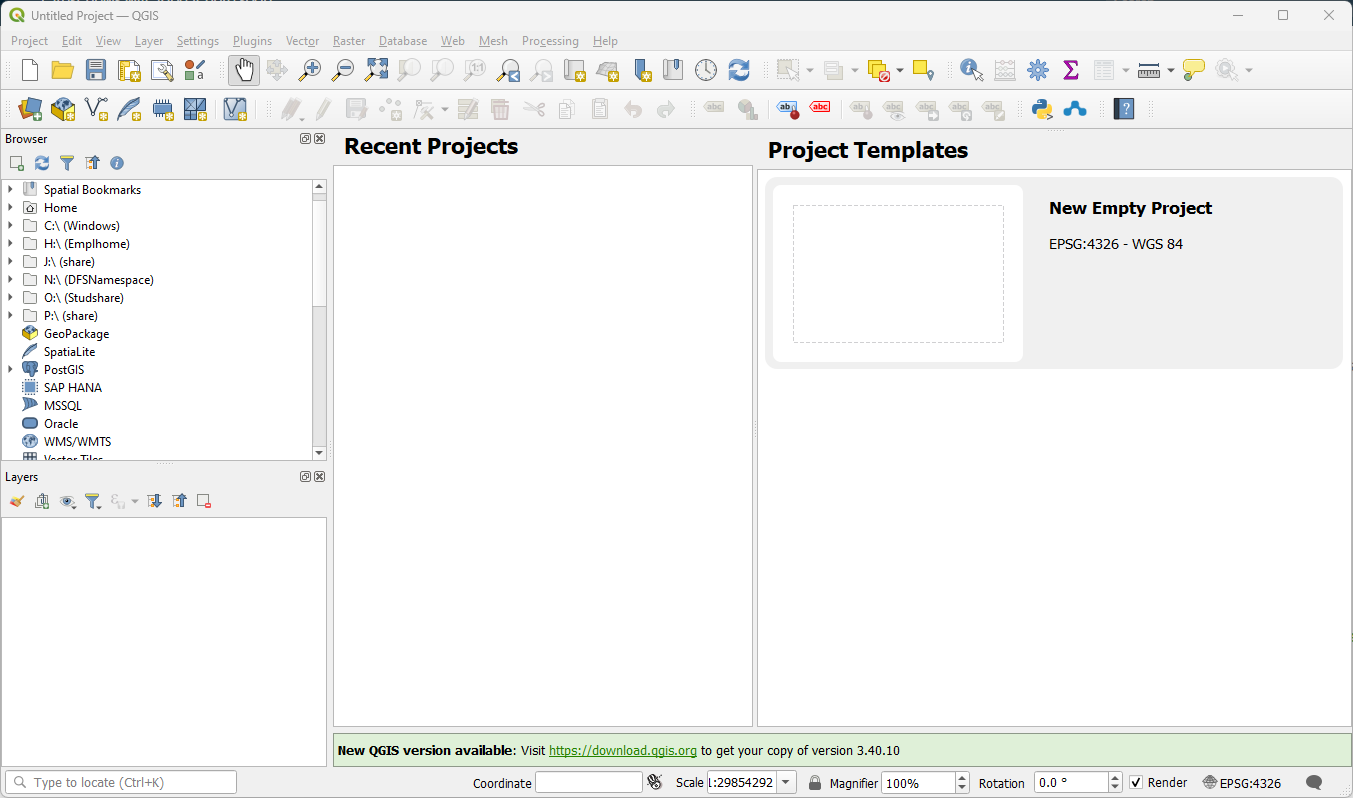
You can download QGIS for your personal computer through the QGIS site – download QGIS.
Choose the appropriate download link based on your operating system. For Windows and Mac OS, choose the Long term release (most stable) option. or the same one as we use in the GIS Lab 3.34.15 Prizren
When examining the options in the Archive – you want to choose a version the is Long Term Version (LTR)
If you are interested in the 3.34.15 version here are some direct links to the parent directory for each version
For Windows- select the .msi version from this link – https://ftp.osuosl.org/pub/osgeo/download/qgis/windows/

For MacOS- select the .dmg version from this link – https://ftp.osuosl.org/pub/osgeo/download/qgis/mac/macos/ltr/
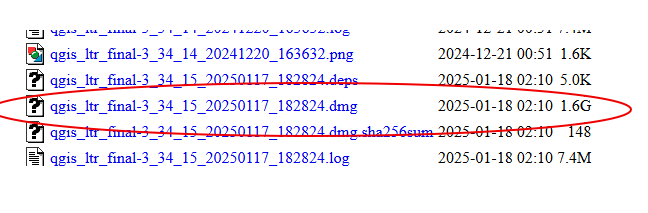
**NOTE – MacOS has a security function you need to search the internet for how to override it and allow for the open source QGIS software
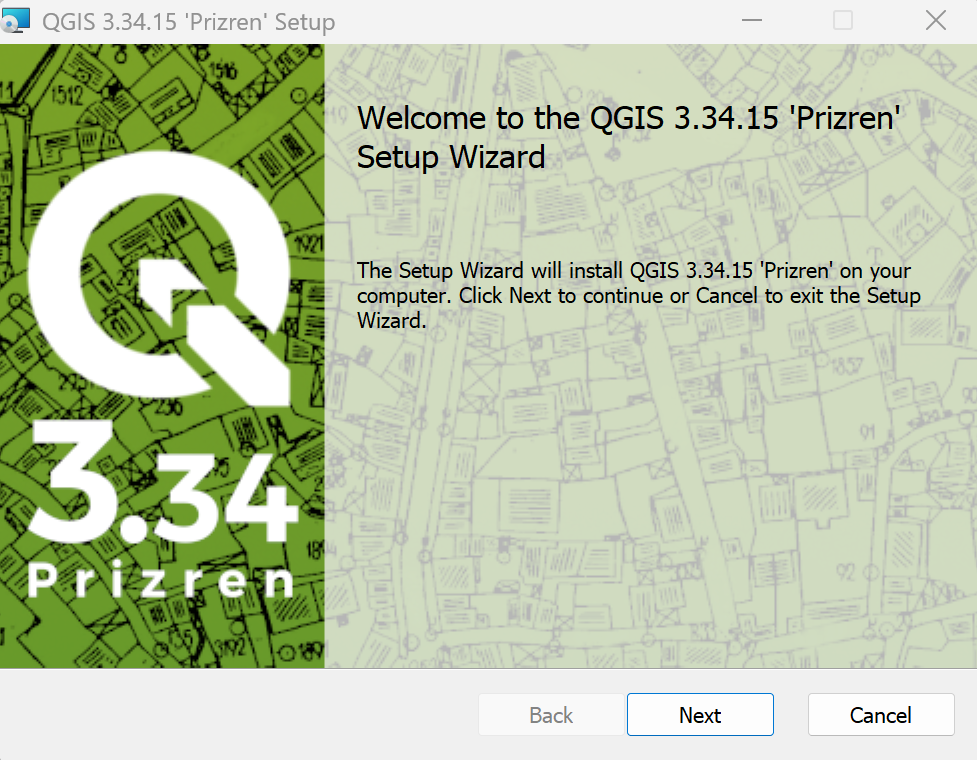
Proceed through the Setup Wizard to install QGIS. Keeping all the default settings during installation works well.
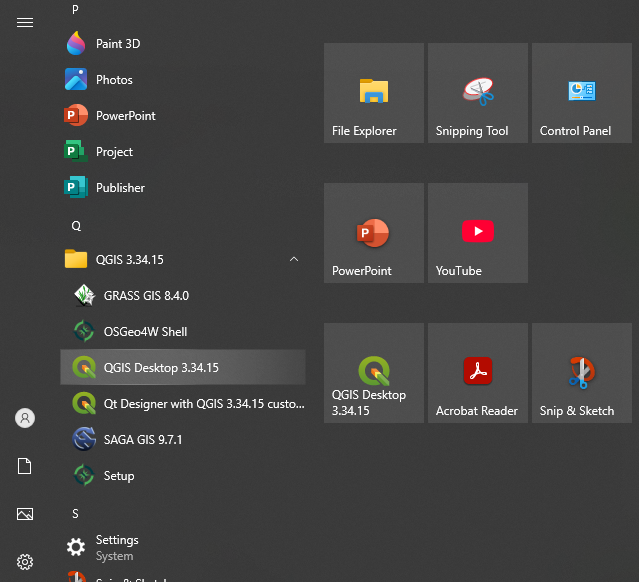
Open QGIS Desktop from your computer. Note: If there is an option called QGIS Desktop, choose that option instead.
The QGIS interface.