Basemaps serve as a reference map or background msp, on which you overlay data from layers and visualize geographic information. It acts as a context map for additional information (layers). An individual basemap can be made of multiple features that often do not change (boundaries, rivers, roads, highways, etc.), and can be vector, raster, or web layers. Basemaps are the foundation for your maps and provide context for your additional layers..
For example; if you wanted to show all the different invasive species within a region, using a basemap with boundaries (provincial, state, municipal, park reserve, etc.) roads, waterways, and perhaps elevation may improve the map readers’ interpretation when reading the map.
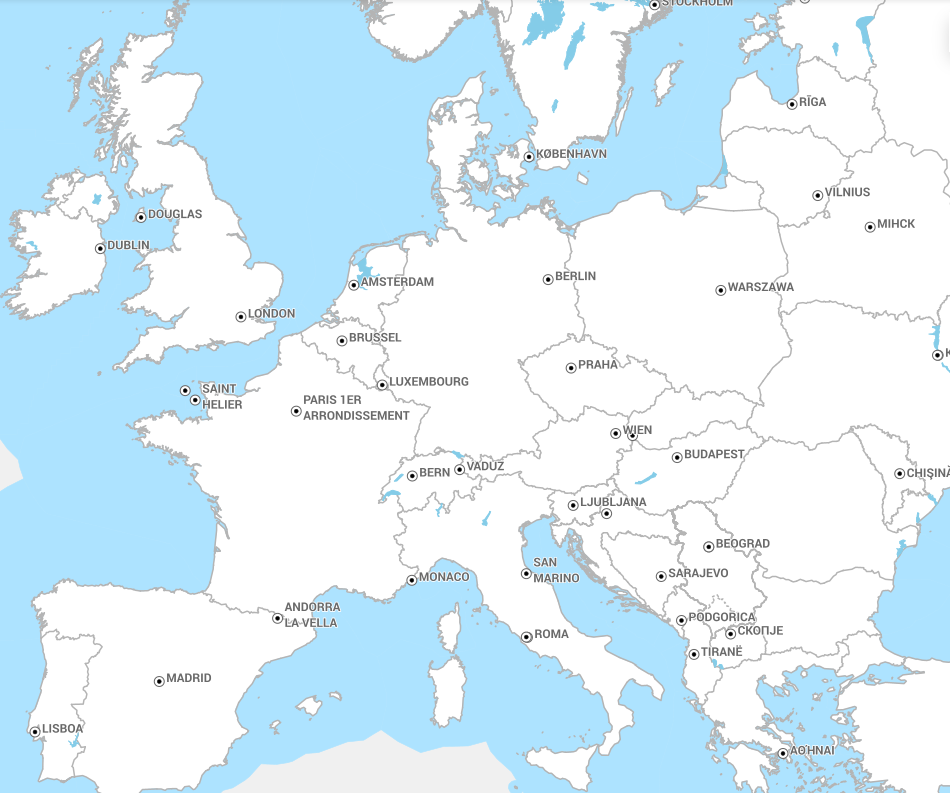
Figure 1: Example of a basemap of Europe
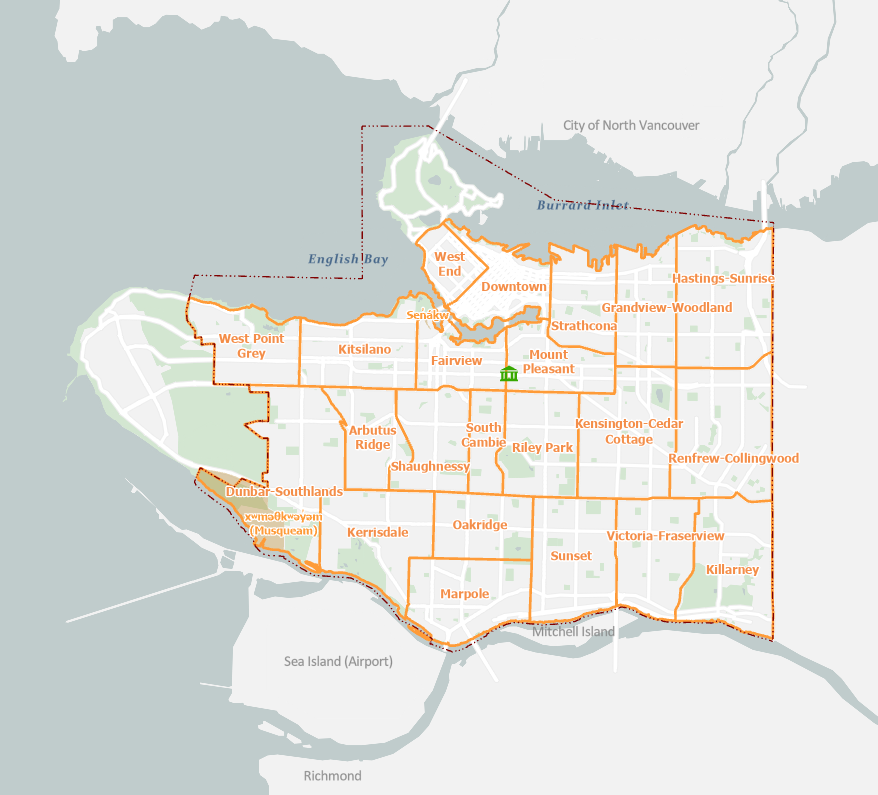
Figure 2: Example of a basemap of Vancouver
QGIS provides a variety of manners to create basemaps.In this tutorial we will examine the use of basemaps and how to import them into QGIS.
Activity 1: Locating Basemaps
QGIS has a basic basemap built into the program, to access this basemap do the following:
- In the Browser Panel locate XYZ Tiles
- Drag the OpenStreetMap or MapZen Global Terrain into the Map View or Add Layer to Project
- Zoom in and out to see the quality of the basemap.
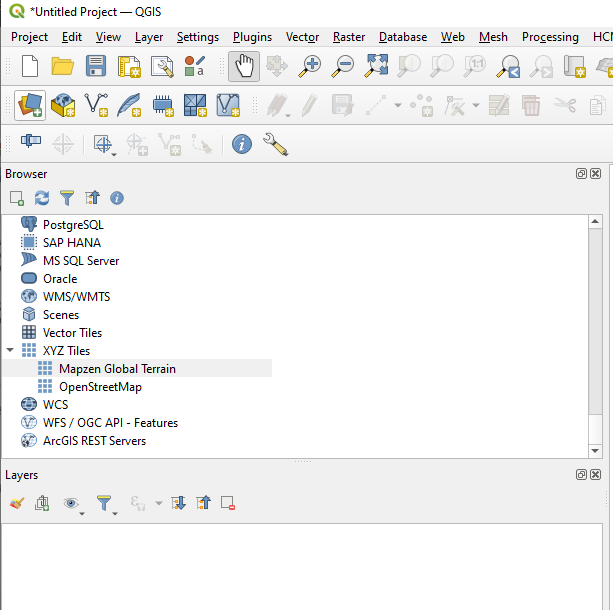
Figure 3: XYZ Tiles
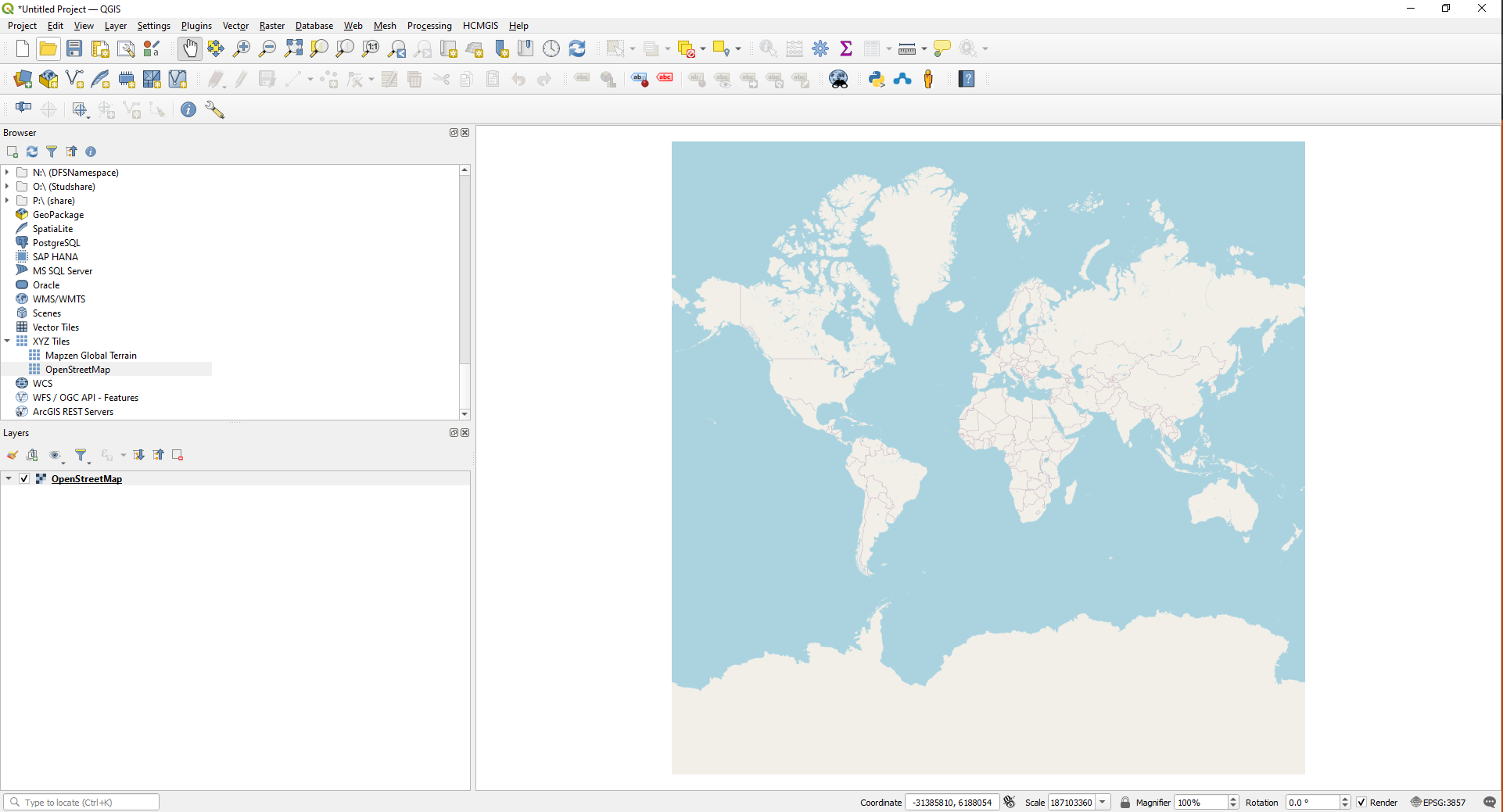
Figure 4: OpenStreetMap Basemap
Activity 2: Locating more Basemaps
QGIS has several plugins that when installed provide access to online basemaps. Locating these plugins is a simple task.
- Locate the Plugins tab on the Menu Bar
- Search for”QuickMapServices”
- Install QuickMapServices
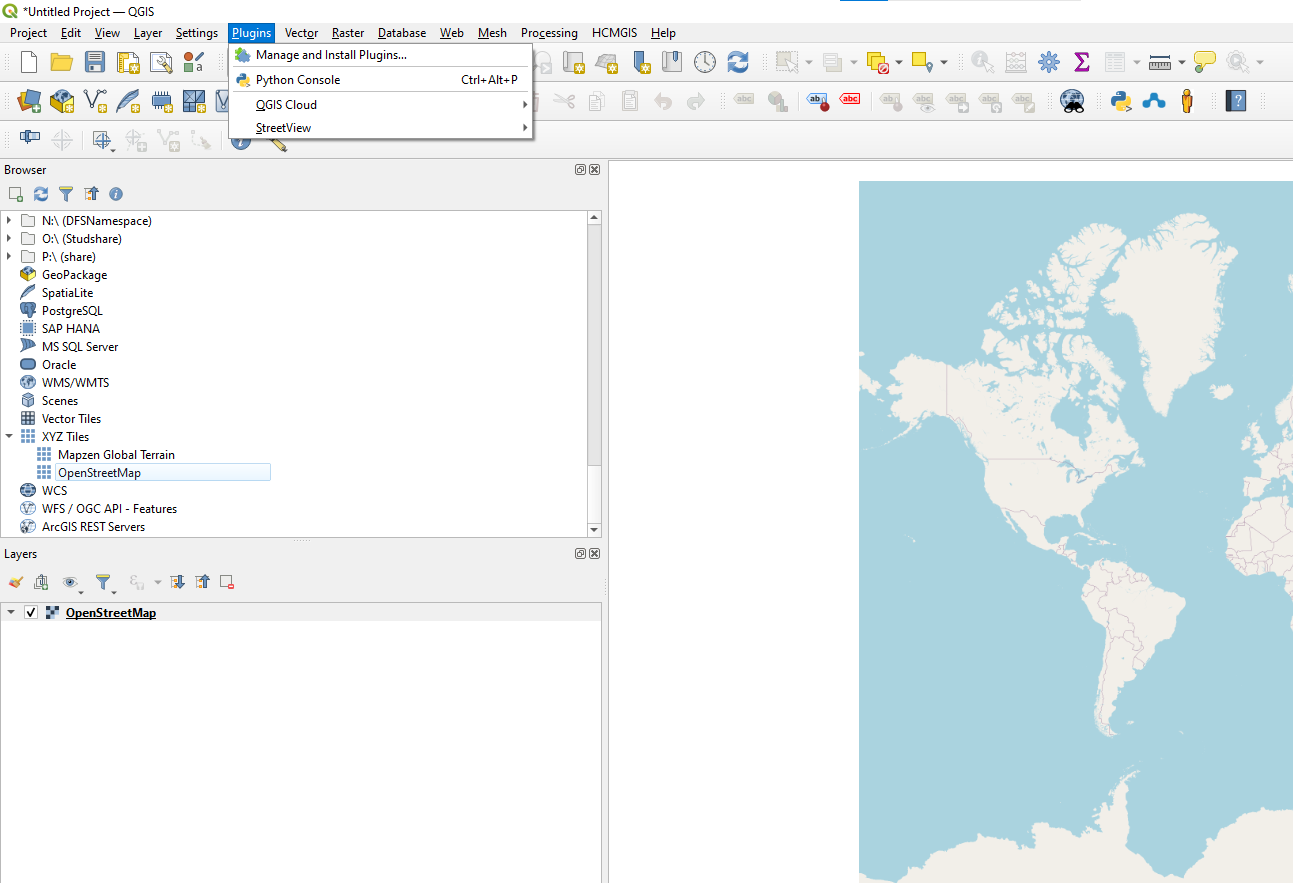
Figure 5: Plugins tab on Menu Bar

Figure 6: Installing Plugins
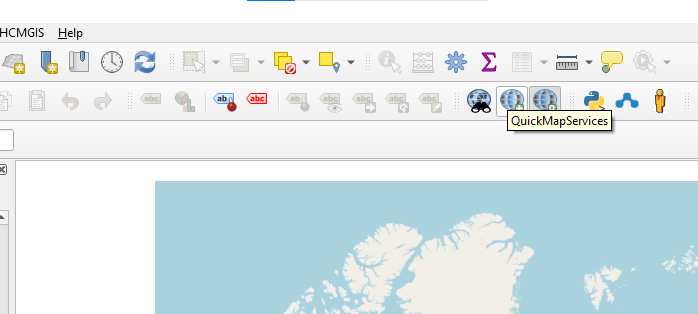
Click on the QuickMapServices Icon or the Web tab in the Menu Bar, you will see some of the options for Base Maps accessed through the defined providers. Pay attention to the scale of the maps provided.
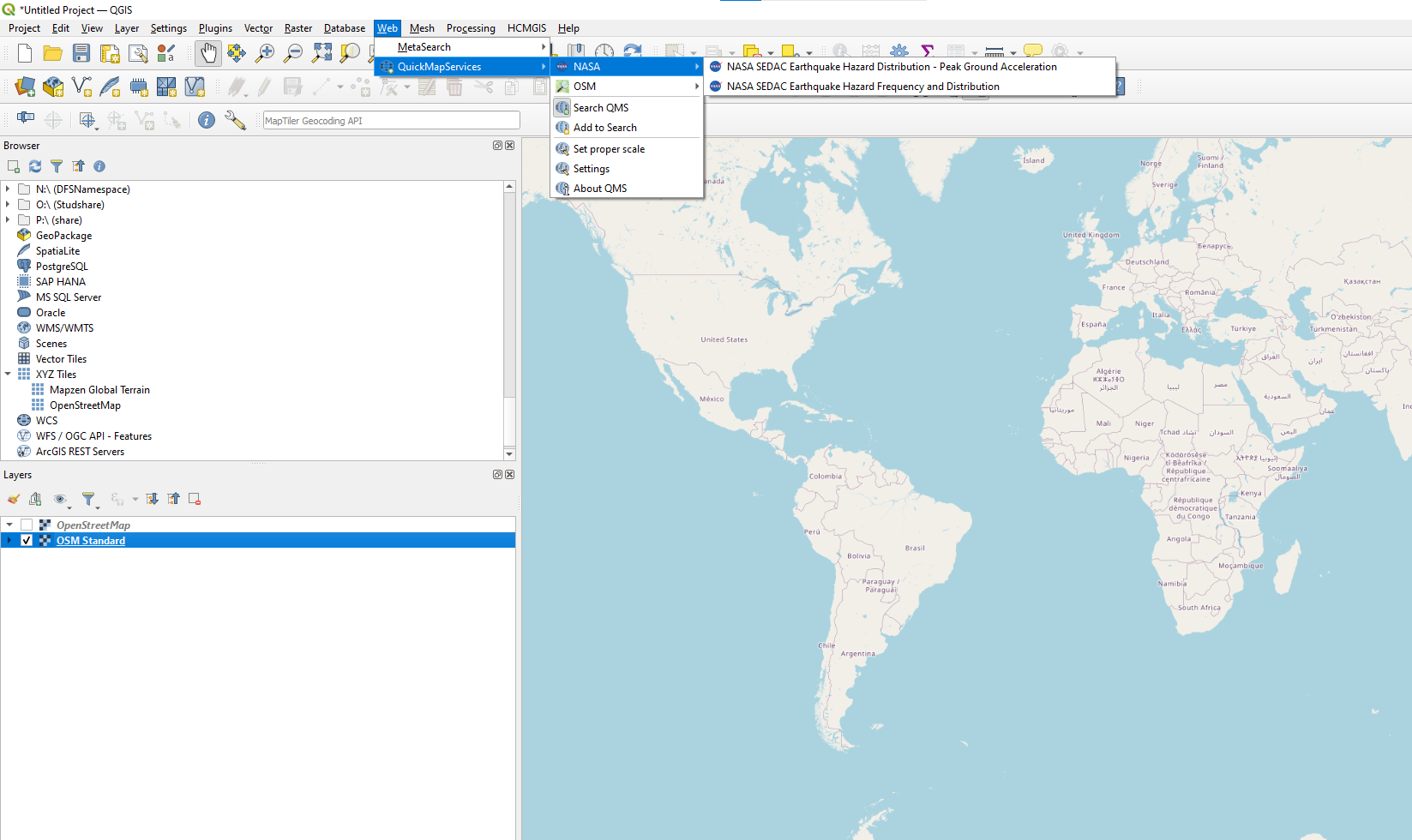
Using the Menu Bar > Web > QuickMapServices > SearchQMS and you will find a Search QMS panel appear on the right side of the Map View.
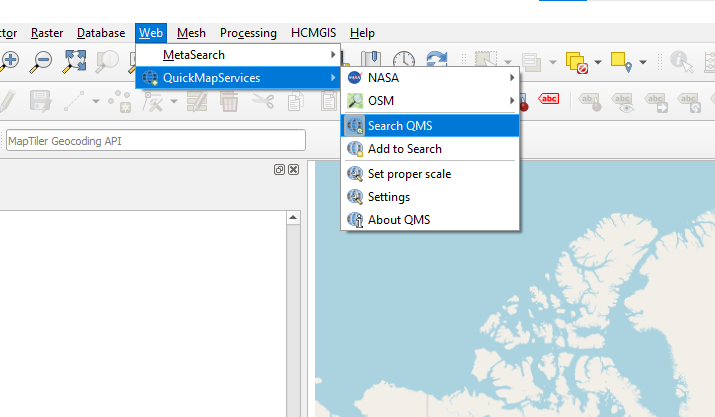
You can see I searched for Roads and imported the Google Roads option.
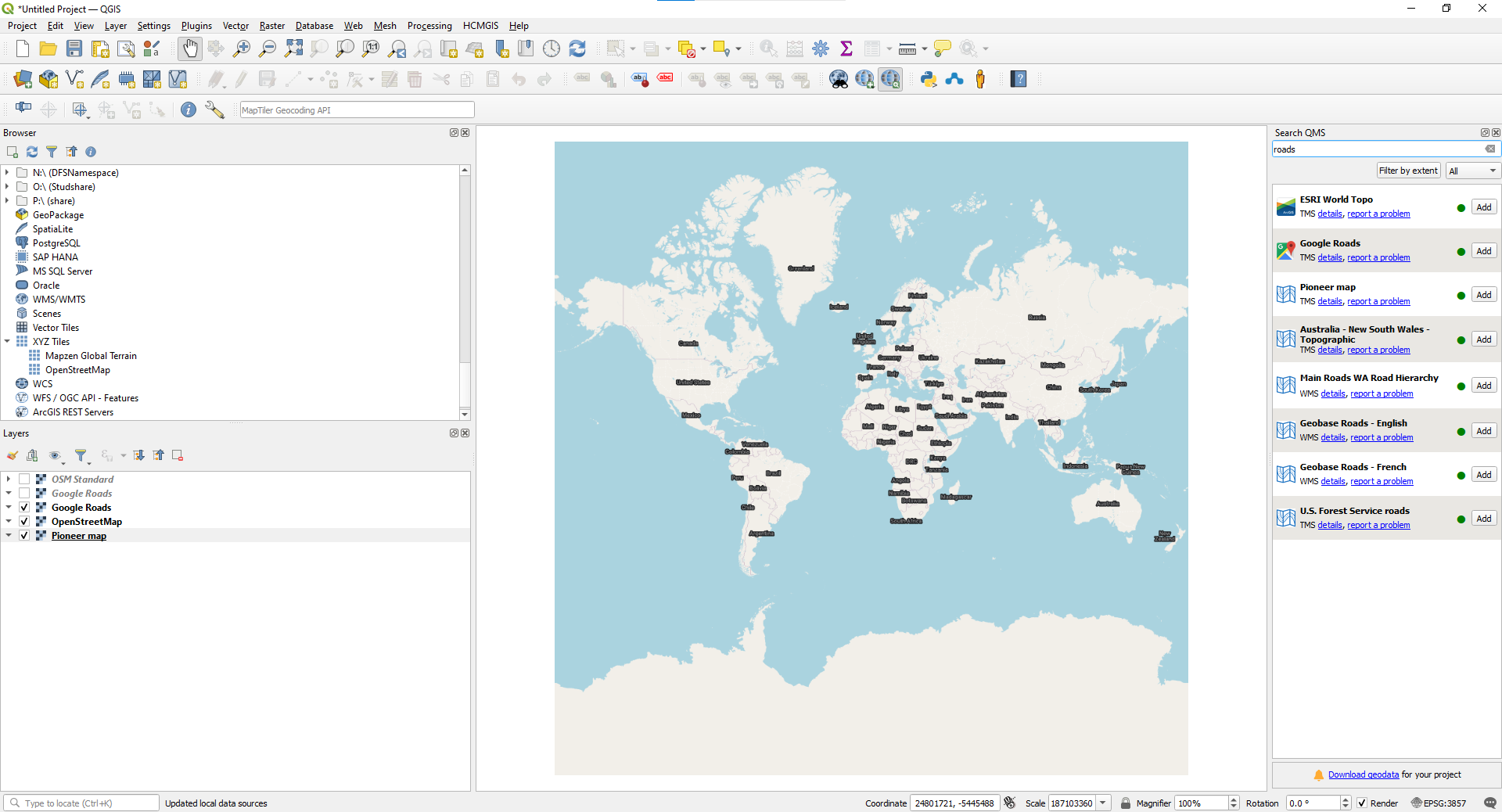
Next search for “Satellite”and import the Google Satellite and Google Hybrid Satellite.

There are hundreds of Basemaps available through QuickMapServices. Explore the options and recognize the benefit and ease of adding basemaps to your GIS mapping skills.
Activity 3: Even more Basemaps
Using the steps learned above Instral the HCMGIS plugin
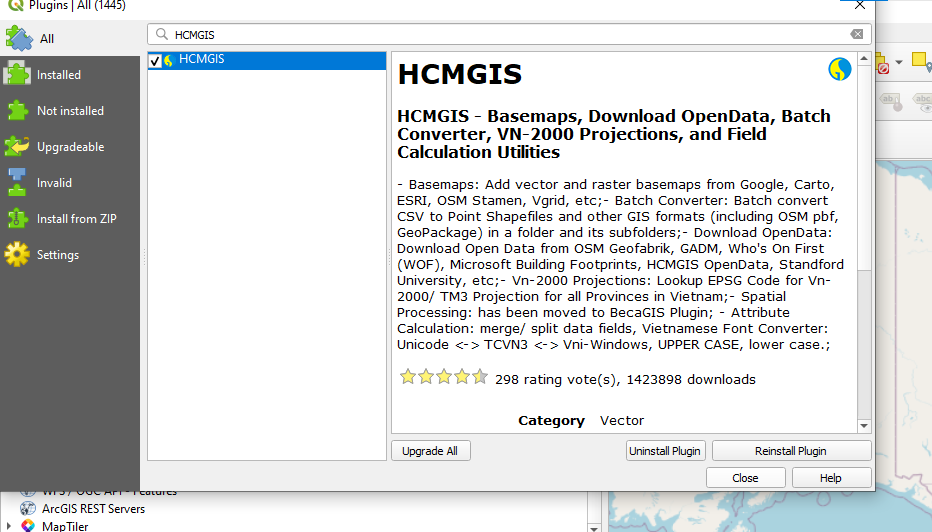
Examine the Options available by finding the HCMGIS tab in the menu bar.
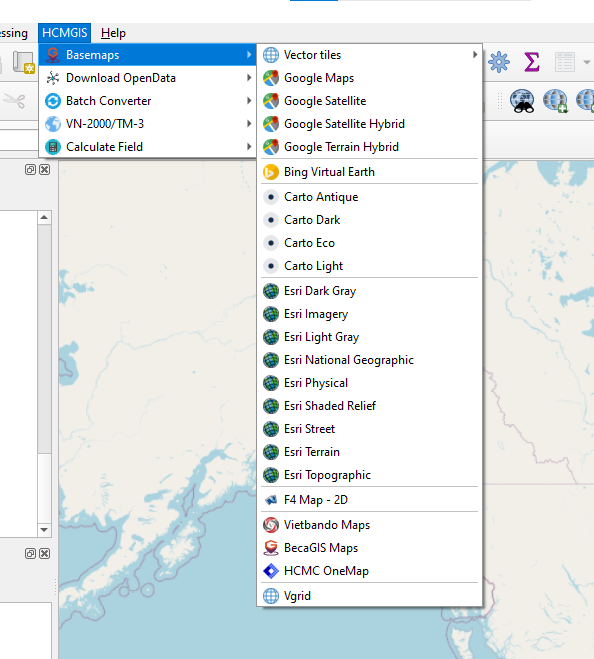
Again, reflect on the ease of access and how these base maps can improve your map readers’ experience and the ease of access.
Activity 4: Web-based map tile providers. (Web Map Tile Service (WMTS) and a Web Map Service (WMS))
In your Browser panel locate WMS/WMTS, right click and choose 
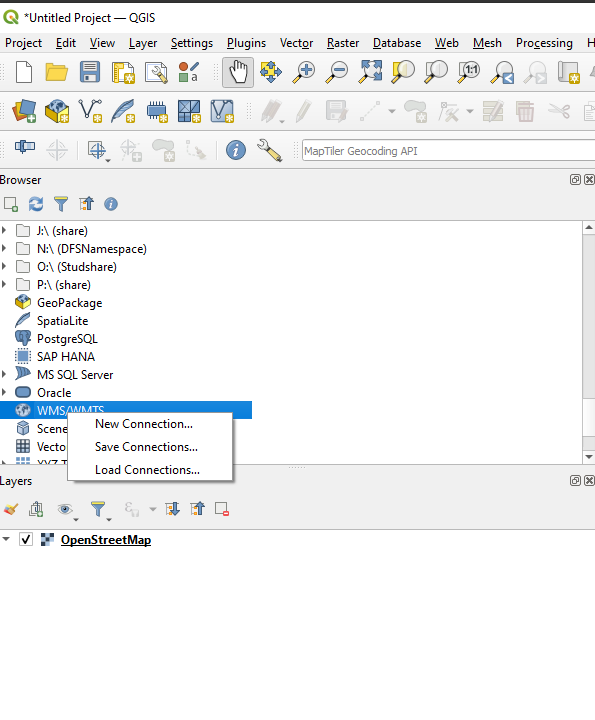
Now we need to locate a Web Map Service or WMTS, so open Google and search for “ÖSM WMS Server”. 
Choose the Wiki option near the top of the results page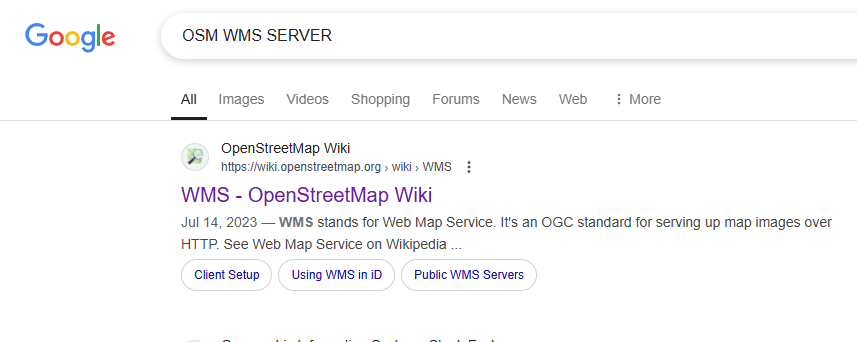
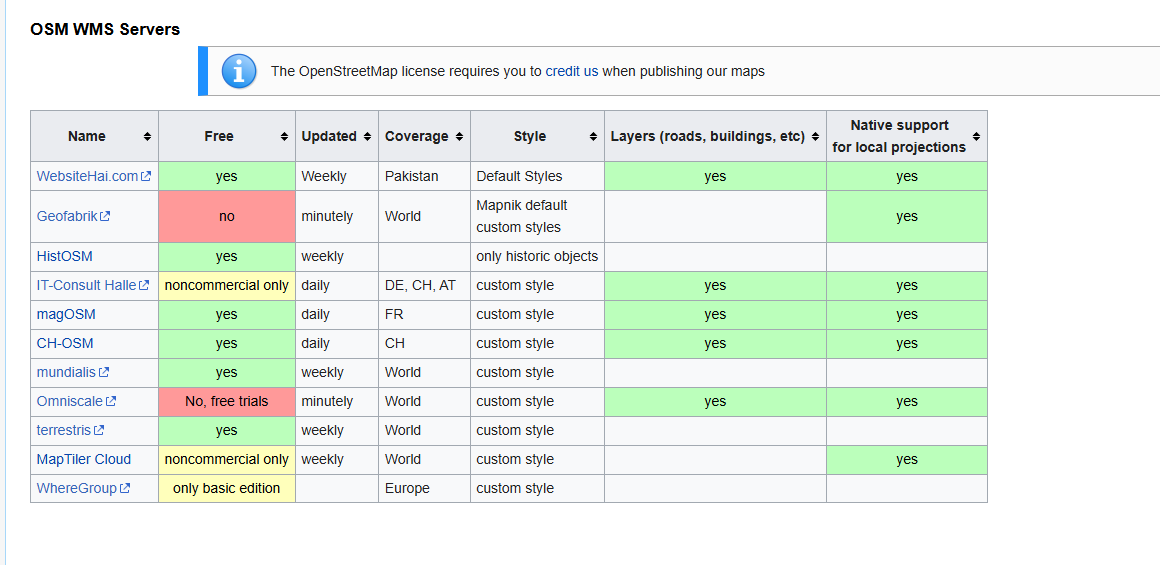
Read the page, you will see some WMS options like aerial imagery etc. These may come in useful later this semester. You will see the table below and see some free options. We will choose Terrestris
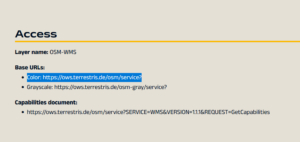
Opening the terrestris site you will notice a Base URLs in the top right corner. You can copy the colour URL

Returning to QGIS and the “create a new connection” box
Enter the name of the site and paste the URL in the appropriate box.

You will now see Terrestris website appear in the Browser panel. Explore you options. I really liked the Dark and Colored Hillshade.

Activity 5: XYZ Tiles
Returning to the XYZ Tiles in the Browser panel, right click and choose “New Connection”
Using Google search for XYZ Tiles server
here is an example of a search result – https://support.goldensoftware.com/hc/en-us/articles/227331707-Web-services-for-use-in-Surfer
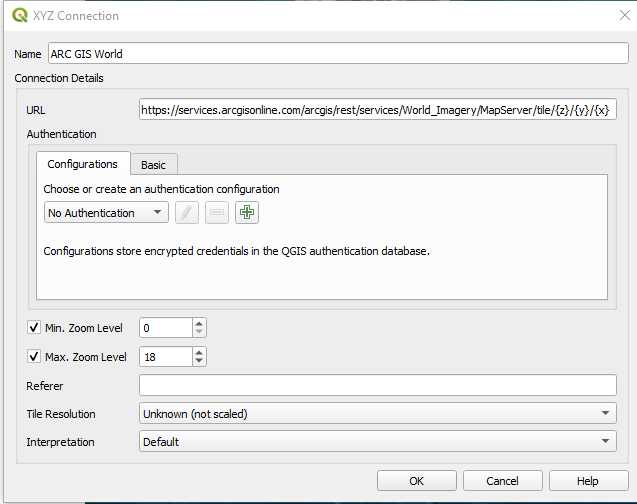
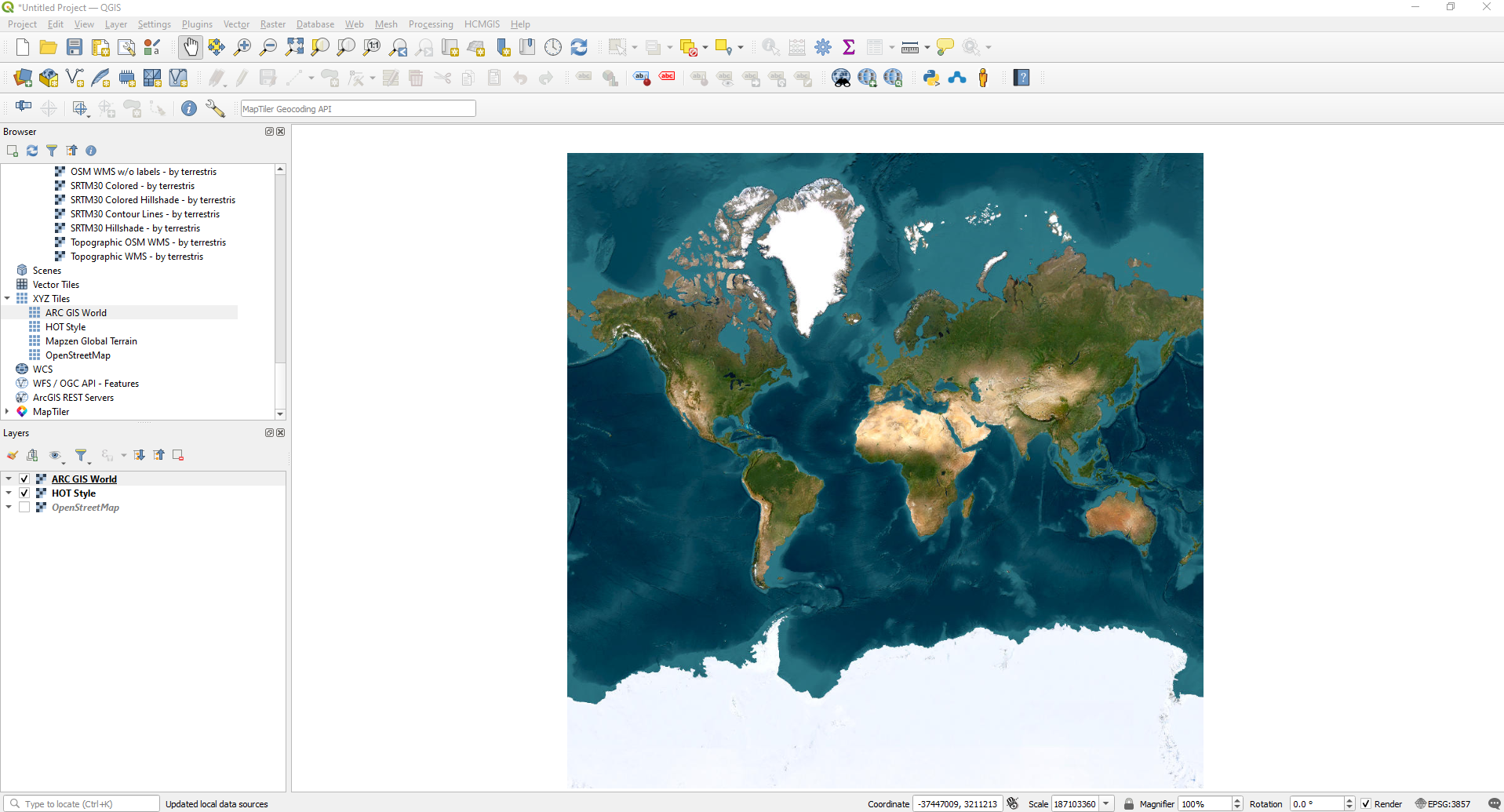
If I copy the URL from the ARC GIS World and enter it into the XYZ “new connection” box, I get the following result.